
 See Our Latest Article on HelloNation
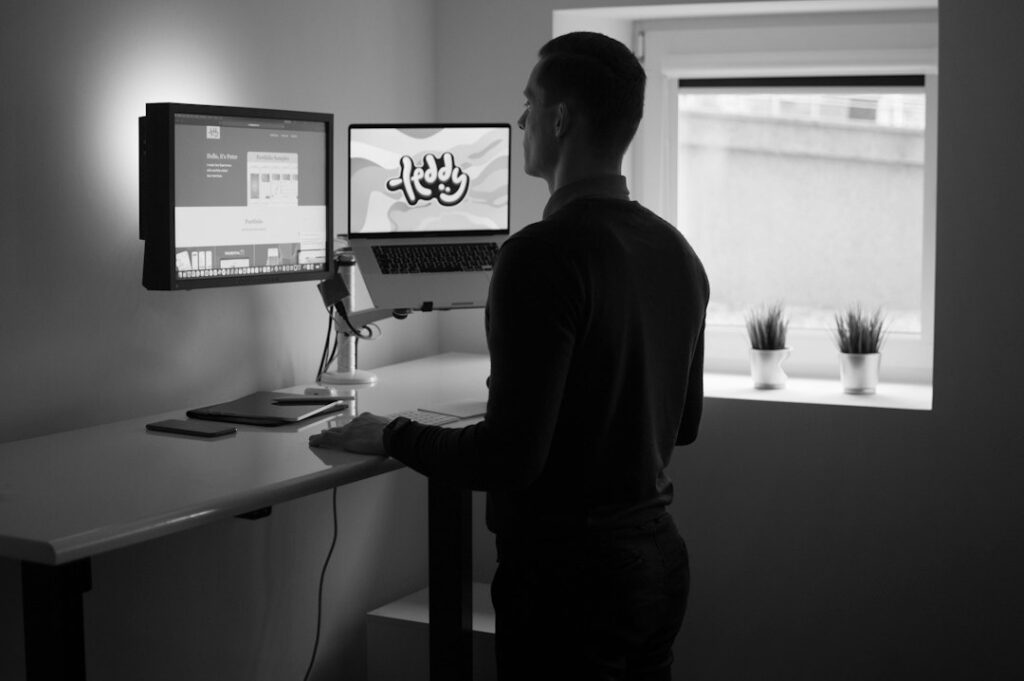
A spine-friendly workspace helps the head, neck, shoulders, back, wrists, and hips stay in a more comfortable position during daily tasks. The goal is not to hold the body rigidly or maintain one “perfect” posture all day. It is to reduce unnecessary strain, support natural movement, and make frequent position changes easy.
For residents of German Flatts who work from home, study, manage household tasks, or spend long periods at a computer, a few practical adjustments can make the workspace more comfortable and sustainable.
What makes a workspace spine-friendly?
A spine-friendly workspace supports a neutral body position while allowing regular movement. Neutral does not mean perfectly straight. It generally means the head is balanced over the shoulders, the shoulders are relaxed, the lower back is supported, and the joints are not held at extreme angles.
A useful workspace usually allows:
- The screen to be viewed without bending the neck downward
- The elbows to remain close to the body
- The wrists to stay fairly straight while typing
- The feet to rest securely on the floor or on a stable footrest
- The hips to sit slightly higher than or level with the knees
- The worker to stand, walk, or shift position without disrupting the work area
The most supportive arrangement is one that fits the person using it. A setup that works for a tall adult may not suit a shorter adult, a child, or someone with limited hip, shoulder, or ankle mobility.
Where should a computer monitor be placed?
The top portion of the monitor should generally be near eye level, with the screen positioned about an arm’s length away. The exact height depends on vision, screen size, and whether the user wears corrective lenses.
If the monitor is too low, the head tends to tilt forward for extended periods. This can increase the workload on the neck and upper back. If it is too high, the chin may lift and the neck may become tense.
Try these adjustments:
- Raise a laptop on a stable stand or several sturdy books.
- Use a separate keyboard and mouse if the laptop is elevated.
- Keep the monitor directly in front of the body rather than angled far to one side.
- Increase text size instead of leaning toward the screen.
- Reduce glare so the head does not repeatedly move into an awkward position.
People who use two monitors should place the primary screen directly in front of them. If both screens are used equally, placing them close together with the center seam in front of the nose can reduce repeated twisting.
How should a desk chair be adjusted?
A chair should provide support without locking the body into one position. The lower back should be gently supported, but the support should not force the pelvis too far forward or create pressure in one small area.
Start with the seat height. The feet should rest firmly on the floor, and the knees should be approximately level with the hips or slightly lower. If the chair must be raised for proper desk height and the feet no longer reach the floor, use a stable footrest rather than allowing the legs to hang.
The seat should not press sharply behind the knees. A small gap between the front edge of the seat and the back of the knees allows more comfortable circulation and movement.
Armrests can help reduce shoulder strain when they allow the arms to rest lightly with the shoulders relaxed. If armrests push the shoulders upward or prevent the chair from moving close enough to the desk, they may create more tension than support.
What is the right position for the keyboard and mouse?
The keyboard should be close enough that the elbows stay near the sides of the body. The forearms should be roughly level with the floor or slope slightly downward toward the hands. The wrists should remain straight rather than bent upward or sharply angled to either side.
A mouse placed too far away can cause repeated reaching and shoulder tension. Keep it beside the keyboard and move from the elbow and shoulder as needed rather than gripping the mouse tightly.
Avoid resting the wrists heavily on a hard desk edge. A soft, broad surface may be more comfortable, but the main goal is to avoid sustained pressure and awkward bending. During longer tasks, briefly open and close the hands, roll the shoulders gently, and change the position of the forearms.
Is sitting all day harmful for the spine?
Long periods of uninterrupted sitting can contribute to stiffness, muscle fatigue, and discomfort. The problem is usually not sitting itself but remaining in the same position for too long.
A practical approach is to change position every 30 to 60 minutes. The change can be brief:
- Stand while reading a message.
- Walk to another room and back.
- Perform a few relaxed shoulder movements.
- Shift from sitting to standing for a short task.
- Reposition the feet and pelvis before returning to work.

A sit-stand desk is not required. A regular desk can become more movement-friendly when frequently used items are placed within easy reach and short walking breaks are built into the day.
Standing for hours without moving is not automatically better than sitting. Alternate between sitting, standing, and walking based on comfort and the task being performed.
How can a home workspace handle seasonal conditions?
In German Flatts, winter conditions may encourage people to spend more time indoors, while heating systems can make rooms dry and less comfortable. Cold temperatures may also lead to stiff shoulders or reduced movement if the workspace is located near a drafty window or poorly insulated area.
Keep the work area warm enough for relaxed movement without placing a chair where cold air causes the shoulders to stay raised. During darker months, use adequate lighting to reduce leaning toward the screen. If footwear is worn indoors for warmth, confirm that it does not make the feet unstable or prevent comfortable foot placement.
Home workspaces are often arranged at kitchen counters, dining tables, or temporary desks. These surfaces can work for short periods, but they may not fit the body well for a full workday. A temporary setup should be reassessed if the neck, shoulders, wrists, or lower back regularly become uncomfortable.
What common workspace mistakes should be avoided?
Several habits create strain even when the chair and desk appear suitable.
One common mistake is working from a couch or bed for long periods. Soft surfaces encourage slumping and make it difficult to position the screen, keyboard, and feet properly. Another is using a laptop flat on a table, which often forces the head downward.
Other overlooked problems include:
- Holding a phone between the ear and shoulder
- Keeping frequently used items far outside easy reach
- Sitting on one leg for extended periods
- Working with the body turned away from the monitor
- Ignoring a chair that slowly sinks during the day
- Wearing a backpack or tool belt unevenly while moving between tasks
- Staying focused on a task while ignoring growing discomfort
Discomfort is useful information. It does not always indicate serious injury, but it often signals that the setup, workload, or movement pattern needs attention.
When should workspace discomfort be evaluated?
Mild stiffness that improves after changing position or taking a walk is often related to fatigue or sustained posture. More persistent symptoms deserve closer attention.
Seek medical evaluation for back or neck discomfort that follows a significant fall, collision, or other injury. Prompt attention is also appropriate for pain accompanied by progressive weakness, numbness, loss of coordination, unexplained fever, or changes in bladder or bowel control.
For everyday workspace comfort, begin with simple changes: adjust the screen, support the feet, bring the keyboard closer, reduce reaching, and take regular movement breaks. A spine-friendly workspace should make those adjustments easy rather than requiring the body to tolerate the same position for an entire work session.